
A laptop screen plays an important role in everyday computer use, whether you are working, studying, watching videos, or browsing the internet. However, regular use can leave the display covered with dust, fingerprints, oily marks, and other visible dirt. These marks can become distracting, particularly when light reflects off the screen.
Learning how to clean laptop screen surfaces properly does not require expensive equipment or complicated techniques. A suitable microfiber cloth and careful cleaning habits are often enough to remove ordinary surface dirt. However, using the wrong chemicals or applying too much pressure can damage delicate display coatings. Therefore, it is important to understand the appropriate cleaning method before starting.
Why Laptop Screens Collect Dust, Fingerprints, and Smudges
Laptop screens collect dust because small particles circulate through indoor environments and settle on exposed surfaces. Air movement, clothing fibers, and everyday activities can contribute to this buildup.
Fingerprints and oily smudges usually appear when users touch the display or accidentally make contact with it while opening or adjusting the laptop. The amount of dirt depends on the environment, handling habits, and frequency of use.
Why Proper Cleaning Methods Matter
Laptop displays may have protective, anti-glare, or anti-reflective coatings that require careful handling. Certain chemicals and abrasive materials can affect these surfaces.
Understanding how to clean laptop screen surfaces safely helps prevent unnecessary damage. Using a soft cloth, avoiding excessive pressure, and following the manufacturer’s cleaning recommendations are sensible precautions.
Why Should You Clean Your Laptop Screen?
Regular cleaning helps maintain a neat workspace and makes everyday computer use more comfortable. Dust and fingerprints can become distracting when reading documents, viewing photographs, or watching videos.
A clean display also makes it easier to notice physical damage, unusual spots, or changes in screen appearance that might otherwise be hidden beneath dirt.
Maintain Clear Display Visibility
Dust and oily marks can interfere with comfortable viewing, especially when they are visible against bright backgrounds or under direct lighting. Removing these marks helps maintain a clear viewing surface.
However, cleaning cannot repair dead pixels, internal display defects, or permanent scratches. Those problems require separate troubleshooting or professional assistance.
Remove Dust and Fingerprints
Fingerprints and dust are among the most common reasons a laptop display looks untidy. A clean microfiber cloth can help remove loose particles and many everyday marks without requiring strong cleaning products.
When considering how to clean laptop screen surfaces, begin with gentle dry wiping. This helps remove loose dust before introducing any approved cleaning liquid.
Keep Your Laptop Clean and Presentable
A clean laptop looks more presentable in classrooms, offices, meetings, and home workspaces. It also makes regular maintenance easier because visible dirt can be removed before it becomes distracting.
Screen cleaning should be part of general laptop care, alongside maintaining the keyboard, touchpad, and exterior surfaces.
Essential Tools and Materials for Cleaning a Laptop Screen
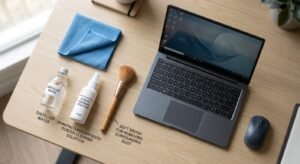
Before starting How to Clean Laptop Screen, gather a few suitable materials. Most everyday screen-cleaning tasks do not require an expensive kit. The important thing is to choose products that are compatible with your particular display.
Microfiber Cleaning Cloth
A soft, clean microfiber cloth is one of the most useful materials for display maintenance. Its fine fibers help lift dust and fingerprints without the rough texture associated with some household cleaning materials.
Choose a lint-free cloth that has not been used with furniture polish, household cleaners, or other substances. Keep it separate from the cloth used for cleaning your keyboard or laptop exterior.
Distilled Water
Distilled water contains fewer dissolved minerals than ordinary tap water. Some manufacturers recommend using a slightly damp microfiber cloth with water to remove stubborn marks.
However, distilled water is not automatically suitable for every laptop display. Check your device manufacturer’s instructions first. If water is permitted, use a small amount and ensure the cloth is not dripping.
Manufacturer-Approved Screen Cleaning Solution
Some manufacturers allow specific screen-cleaning products for their devices. These products may help remove persistent fingerprints and oily marks when used according to their instructions.
Before purchasing a solution, check its ingredients and compatibility with your laptop display. A product advertised for televisions, windows, or smartphones should not automatically be considered safe for every laptop.
Soft Brush for Removing Surrounding Dust
A clean, soft brush can help remove loose dust from the laptop’s exterior, bezel, and surrounding areas. Use gentle movements and avoid pressing the brush against the active display.
Keeping a separate brush for surrounding areas also helps prevent dust from transferring back onto the screen.
How to Clean Laptop Screen Safely: Step-by-Step Guide
The safest approach is to use a simple cleaning process and avoid unnecessary chemicals. The following instructions explain how to clean laptop screen surfaces while reducing the risk of moisture exposure and physical damage.
Step 1: Turn Off and Unplug Your Laptop
Shut down your laptop completely and disconnect its charger and attached accessories before cleaning. If your model has a removable battery, follow the manufacturer’s instructions before handling it.
A powered-off display also makes fingerprints and dust easier to identify. Allow the laptop to cool if it has been running for an extended period.
Step 2: Remove Loose Dust Gently
Inspect the display under suitable lighting. Use a clean, dry microfiber cloth to remove loose dust with very light movements.
Avoid pressing particles against the screen because forceful rubbing may create scratches. Do not use rough clothing, paper products, or household towels as substitutes for a suitable cleaning cloth.
Step 3: Wipe the Screen with a Microfiber Cloth
Fold the microfiber cloth into a manageable section and gently wipe the display. Use controlled movements without applying unnecessary pressure.
For ordinary dust, a dry cloth may be sufficient. If marks remain, check the manufacturer’s cleaning instructions before using a slightly damp cloth.
Step 4: Remove Fingerprints and Stubborn Smudges
Fingerprints sometimes remain after dry wiping because they contain natural skin oils. If your manufacturer permits it, slightly dampen a clean microfiber cloth with the recommended cleaning liquid or water.
Gently wipe the affected area without pressing hard. Never pour liquid onto the display or allow moisture to collect around its edges. If a mark does not disappear through gentle cleaning, stop rather than repeatedly rubbing the same spot.
Step 5: Allow the Display to Dry Completely
Use a dry section of the microfiber cloth to remove visible moisture, following your manufacturer’s instructions. Leave the laptop open until the display is completely dry.
Check that no moisture remains around the screen edges before reconnecting the charger or turning the computer on. This final precaution helps reduce the risk of moisture-related problems.
How to Clean Different Types of Laptop Screens
Laptop displays use different technologies and surface treatments. When learning How to Clean Laptop Screen, remember that basic cleaning principles are similar, but the appropriate cleaning solution can vary depending on the manufacturer and model.
How to Clean LCD and LED Laptop Screens
LCD stands for Liquid Crystal Display. LED usually describes the backlighting technology used in many LCD laptop panels rather than an entirely separate display technology.
Start by gently removing dust with a dry microfiber cloth. For remaining fingerprints, follow the manufacturer’s approved cleaning method. Some manufacturers permit lightly dampened cloth, while others provide specific restrictions on cleaning chemicals.
How to Clean Touchscreen Laptop Displays
Touchscreen laptops receive frequent contact from fingers, so fingerprints and oily marks may appear more quickly. Their surfaces may also include special protective coatings.
Turn off the laptop and disconnect its power source before cleaning. Use a soft microfiber cloth and follow the manufacturer’s touchscreen cleaning instructions. Avoid applying excessive pressure, particularly around the display edges.
How to Clean OLED Laptop Screens
OLED stands for Organic Light-Emitting Diode. Unlike conventional LCD panels, OLED displays use self-emissive pixels that produce their own light.
Their panel construction and protective surface treatments can differ between manufacturers. Use the cleaning instructions supplied for your specific OLED laptop instead of assuming that every OLED display accepts the same chemicals. A dry microfiber cloth is a cautious starting point for loose dust.
How to Remove Different Marks from a Laptop Screen
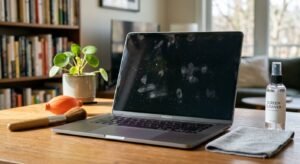
Different types of marks may require different levels of attention. Understanding how to clean laptop screen surfaces according to the type of dirt can help prevent unnecessary wiping and unsuitable chemical use.
Removing Fingerprints and Oily Smudges
Fingerprints usually contain natural oils from the skin. Start by gently wiping the affected area with a clean, dry microfiber cloth.
If the marks remain, follow the manufacturer’s approved damp-cloth cleaning method. Avoid household degreasers, strong detergents, and random cleaning mixtures because they may affect the display coating.
Removing Dust and Loose Particles
Loose dust is usually straightforward to remove. Gently wipe the display with a dry microfiber cloth, using light movements across the surface.
For dust around the bezel, use a soft brush separately. Avoid pushing particles into the gaps around the screen.
Handling Dried Spots and Stubborn Marks
Dried spots may come from fingerprints, splashes, or other substances. First, identify whether the mark is on the display surface or appears to be underneath it.
For surface marks, follow the manufacturer’s approved cleaning method. Never scrape dried material with a fingernail, blade, or hard object. If a spot appears beneath the display surface or does not respond to gentle cleaning, contact an authorized service provider.
What Should You Avoid When Cleaning a Laptop Screen?
When learning How to Clean Laptop Screen safely, avoid using harsh chemicals, excessive moisture, rough materials, or too much pressure. These can damage the display’s protective coating or allow liquid to enter the laptop. Always follow the manufacturer’s cleaning instructions.
Household Glass Cleaners
Avoid assuming that ordinary window or glass cleaners are suitable for laptop displays. Some contain ammonia, solvents, or other ingredients that may affect protective coatings.
For example, Apple specifically advises against using window cleaners, household cleaners, and ammonia on its displays. Always check the cleaning instructions for your own laptop.
Paper Towels and Rough Fabrics
Paper towels, tissues, kitchen rolls, and rough clothing are not ideal substitutes for microfiber cloths when learning How to Clean Laptop Screen safely. Their fibers and surface textures may be unsuitable for delicate display surfaces. Choose a clean, soft, lint-free cloth instead.
Spraying Liquids Directly onto the Display
Never spray cleaning liquid directly onto a laptop screen. Liquid can run toward the edges and enter openings, potentially reaching internal components.
If your manufacturer permits a cleaning solution, apply a small amount to the cloth first. The cloth should be slightly damp rather than wet.
Excessive Pressure and Abrasive Materials
Pressing too hard while wiping places unnecessary stress on the display panel. Abrasive sponges, rough brushes, and hard objects may also damage its surface.
Use gentle movements and avoid trying to remove marks through force.
Unapproved Chemical Cleaning Products
Bleach, ammonia-based cleaners, strong solvents, and other unsuitable chemicals may affect protective coatings. Alcohol also requires caution because manufacturers have different recommendations.
For example, Apple permits certain isopropyl alcohol solutions for specific MacBook cleaning situations, while ASUS advises against alcohol for some LCD and OLED panels. This is why model-specific instructions matter.
Common Laptop Screen Cleaning Mistakes
Even basic maintenance can cause problems when users rush or choose unsuitable materials. Understanding how to clean laptop screen surfaces correctly also means recognizing common mistakes before they happen.
Using Excessive Water or Cleaning Solution
Too much moisture can run into the screen bezel, keyboard, or internal openings. A dripping cloth creates unnecessary risk.
Use only the minimum amount of an approved liquid needed to lightly dampen the cloth.
Cleaning Without Checking Manufacturer Instructions
One common mistake is assuming that all laptop displays have identical cleaning requirements. Screen coatings, materials, and manufacturer policies can differ.
Before choosing a cleaning product, check the official support page or user manual for your exact laptop model.
Using Dirty or Unsuitable Cloths
A cloth previously used for other cleaning tasks may contain dust, grit, oil, or chemical residue. These substances can transfer to the display during wiping.
Use a clean microfiber cloth reserved for screen maintenance. Wash or replace it when it becomes dirty.
Rubbing the Display Too Aggressively
Repeatedly rubbing a stubborn mark may place unnecessary pressure on the panel. It can also spread oily residue across a larger area.
If gentle cleaning does not remove a mark, stop and seek model-specific cleaning guidance instead of applying more force.
Important Safety Tips for Laptop Screen Cleaning
Safe cleaning involves more than choosing a suitable cloth. Following the right precautions when learning How to Clean Laptop Screen also requires careful handling of the laptop and awareness of moisture around electronic components.
Follow the Manufacturer’s Cleaning Recommendations
Read the official cleaning instructions for your laptop brand and model. These instructions are particularly important when dealing with special coatings, touchscreen surfaces, and OLED panels.
Do not assume that a cleaning solution approved for another laptop is suitable for yours.
Use Gentle Pressure and Soft Materials
Always choose a clean, soft microfiber cloth and wipe with minimal pressure. Avoid rough materials and repeated rubbing.
A gentle approach is usually sufficient for ordinary surface dust and fingerprints.
Keep Moisture Away from Screen Edges and Openings
Do not allow cleaning liquid to collect around the bezel, webcam, hinges, or other openings. Apply approved liquids to the cloth rather than directly to the display.
If moisture enters the laptop, stop using it and contact the manufacturer’s support service for advice.
Avoid Cleaning a Hot Display
Allow the laptop to cool after extended use before cleaning it. A powered-off, cool display is easier to inspect and handle.
Avoid placing pressure on the panel while it is warm or operating.
Never Allow Liquid to Enter the Laptop
Liquid exposure can damage electronic components. Keep cleaning materials lightly damp rather than wet, and avoid cleaning near open ports with excess moisture.
If liquid accidentally enters the device, stop cleaning and seek appropriate technical assistance.
Read more: TheLaptopAdviser Buyer Guide: How to Choose the Right Laptop
How Often Should You Clean Your Laptop Screen?
There is no universal cleaning schedule that applies to every laptop user. When considering How to Clean Laptop Screen, remember that cleaning frequency depends on the environment, usage habits, and how quickly dust or fingerprints appear.
Light Dust Removal When Needed
If you notice loose dust on the display, remove it gently with a clean, dry microfiber cloth. Users working in dusty environments may need to do this more frequently.
Fingerprint Cleaning When Visible
Clean fingerprints when they become noticeable or interfere with viewing. There is no need to repeatedly wipe the display when it is already clean.
Occasional Thorough Cleaning Based on Usage
A more careful cleaning may be appropriate when visible smudges accumulate. The important thing is to avoid excessive cleaning, unnecessary chemicals, and aggressive wiping.
How to Keep Your Laptop Screen Clean Longer

Good daily habits can reduce how often you need to clean your display. How to Clean Laptop Screen properly and making small changes to your workspace and laptop-handling routine can help keep your display clean and presentable for longer.
Avoid Touching the Display Surface
Try not to touch the active display unless you are using a touchscreen. Finger contact can leave oily marks that attract dust and make the screen look dirty.
Maintain a Clean Workspace
Keep your desk free from unnecessary dust, food crumbs, and other loose particles. Regularly cleaning the surrounding area can reduce the amount of debris that reaches your laptop.
Close the Laptop Carefully
Before closing the lid, check that the keyboard and display area are free from objects. Pens, earbuds, and other small items trapped between the keyboard and screen may damage the display when pressure is applied.
Use a Protective Laptop Case When Carrying It
A suitable laptop sleeve or carrying case helps protect the computer from dust, accidental contact, and scratches during transportation. Choose a case that fits properly and does not place excessive pressure on the lid.
Keep the Microfiber Cloth Clean
Store your cleaning cloth in a clean, dry place. Wash or replace it when it collects dirt, oil, or debris. A dirty cloth can transfer unwanted particles back onto the display.
Final Thoughts on Cleaning a Laptop Screen
Keeping a laptop display clean does not require complicated equipment or expensive products. A clean microfiber cloth, careful handling, and manufacturer-approved cleaning methods are usually enough to manage ordinary dust and fingerprints.
Once you understand how to clean laptop screen surfaces properly, regular maintenance becomes much easier. Check your manufacturer’s instructions, choose suitable materials, and clean gently. These simple habits can help keep your display clear, neat, and in good condition for everyday use.
FAQs About How to Clean Laptop Screen
What Is the Safest Way to Clean a Laptop Screen?
Turn off and unplug the laptop, then gently wipe the display with a clean, dry microfiber cloth. Follow the manufacturer’s cleaning instructions.
Can I Use Water to Clean My Laptop Screen?
Some manufacturers allow a lightly dampened microfiber cloth. Never spray water directly onto the display.
Can I Use Rubbing Alcohol on a Laptop Screen?
It depends on the display coating and manufacturer guidelines. Check your laptop’s official instructions before using alcohol.
Is Microfiber Cloth Safe for Laptop Displays?
Yes, a clean, soft microfiber cloth is commonly recommended for removing dust and fingerprints without scratching the display.
Can I Use Tissue Paper to Clean My Laptop Screen?
Avoid tissues and paper towels because their fibers may be too rough. Use a clean microfiber cloth instead.
How Do I Remove Stubborn Fingerprints?
Gently wipe with a microfiber cloth. If marks remain, use a manufacturer-approved cleaning method without applying excessive pressure.
Can I Use Glass Cleaner on My Laptop Screen?
Avoid ordinary glass cleaners because some contain chemicals that may damage display coatings. Use only approved cleaning products.
How Often Should I Clean My Laptop Screen?
Clean your display whenever visible dust or fingerprints appear. Cleaning frequency depends on your environment and usage habits.